Documents
On to the real stuff, Documents!
Different documents can be created on the basis of one template. But of course, you don't need Templates, you can just generate a document as is.
Docuemnts can have
- Resolved references, no more abstract stuff, we oly see real data in our documents.
- Explicit References (what are those, you ask? Have a look at advanced QM Lists)
- Plain old text
Creating Documents
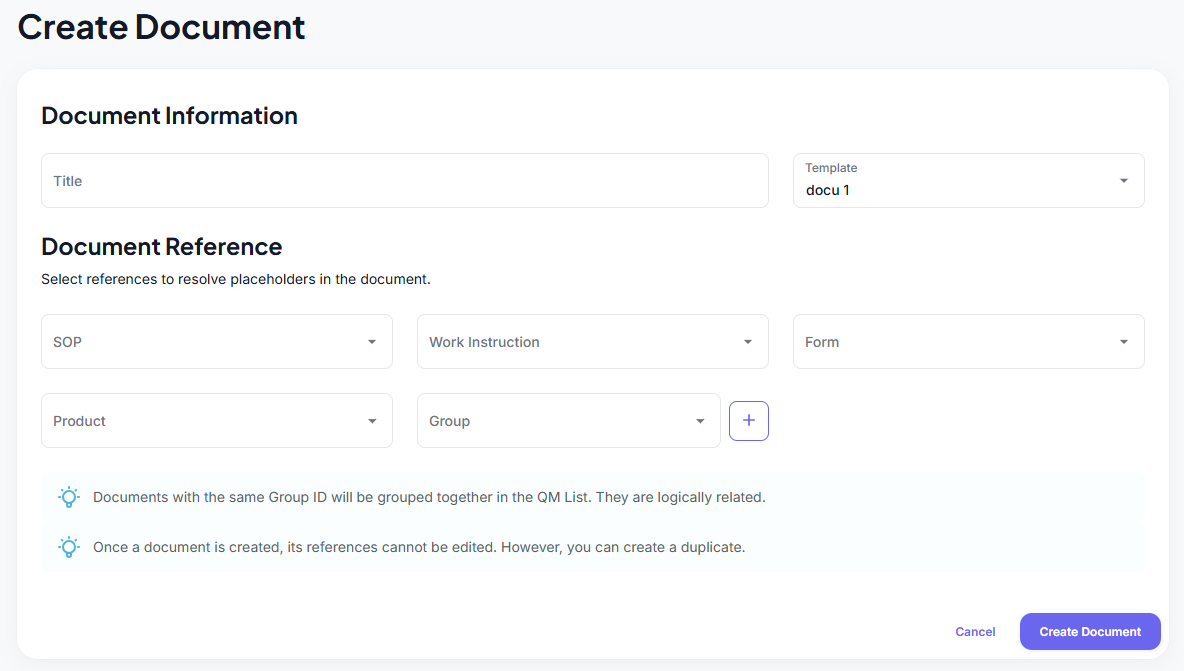
When creating a new Document, you'll be asked to provide:
- A Title (required)
- The Objects + Dataset (required) CertHub will remind you, don't worry!
- A Case ID If the Document is created based on a template that has a Filter Tag defined. See advanced QM Lists for more details (not relevant for any Technical Documentation workflows)
Managing Documents
- Viewing Documents: All Documents are listed in the folder tree.
- Selecting Documents: You can select the Documents from the tree.
- Deleting Documents: Once selected the delete option in the document actions, Documents can be deleted.
- Exporting Documents: Selected Documents can be exported. When you export a Documents, a download starts automatically.
- Importing Documents: Previously exported Documents can be re-imported when needed.
- Filtering Documents: Use the search bar at the top to search for Documents by name. Only Documents that match the specified filter will be displayed.
- Creating a New Documents: Click the "+" button at the top or next to any folder to add a new Documents or create Document from Template.
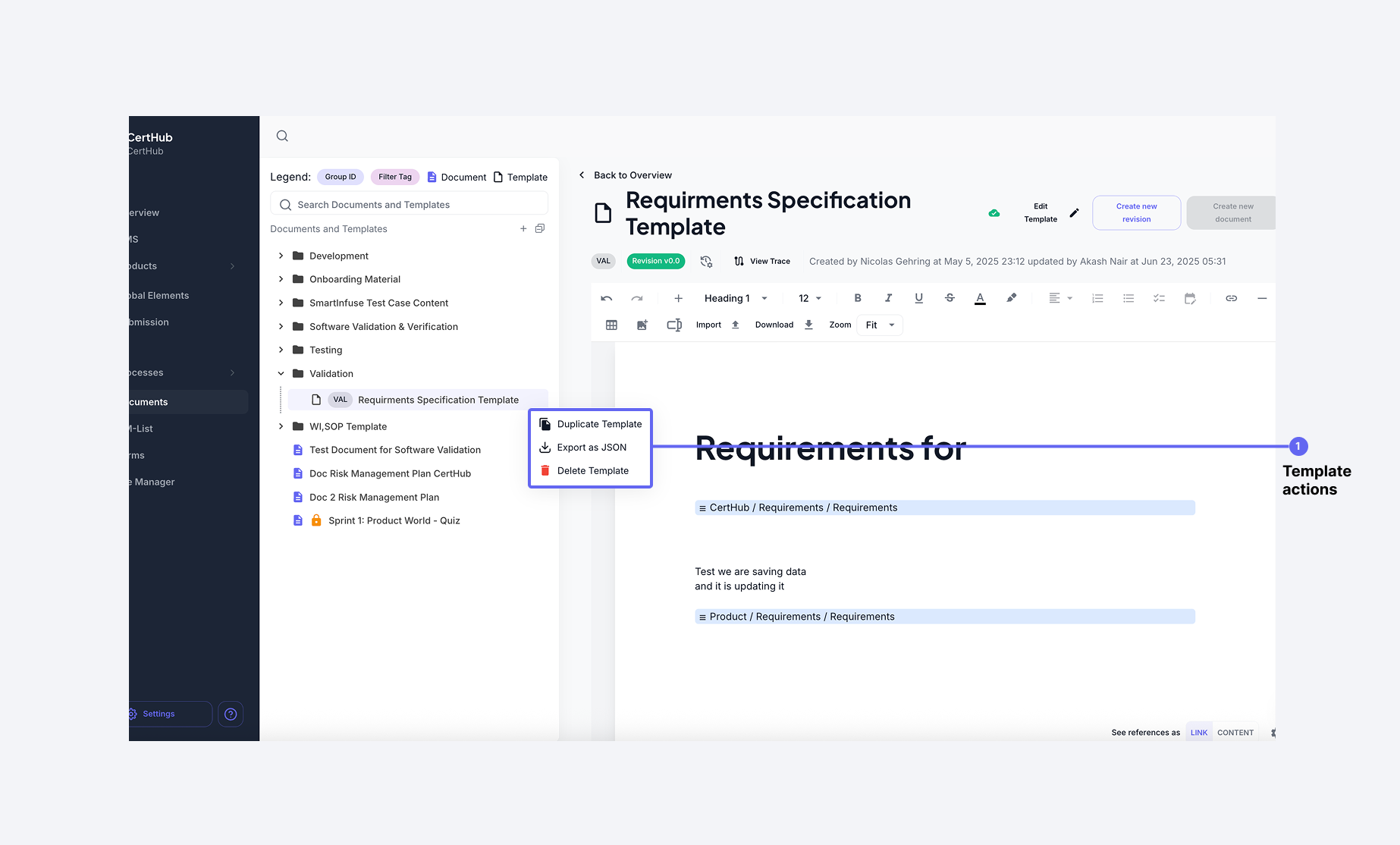
Managing Documents
- Viewing Documents: All Documents are listed in the folder tree.
- Filtering for Documents: You can filter the folder tree for Documents only.
- Deleting Documents: Non-approved documents can be deleted through hovering over the documents and clicking on the menu.
- Exporting Documents: Selected Documents can be exported as .json.
- Importing Documents: Previously exported Documents can be re-imported when needed (still .json).
- Filtering Documents: Use the search bar at the top to search for Documents by name. Only Documents that match the specified filter will be displayed.
- Creating a New Documents: Click the "+" button at the top or next to any folder to add a new Documents.
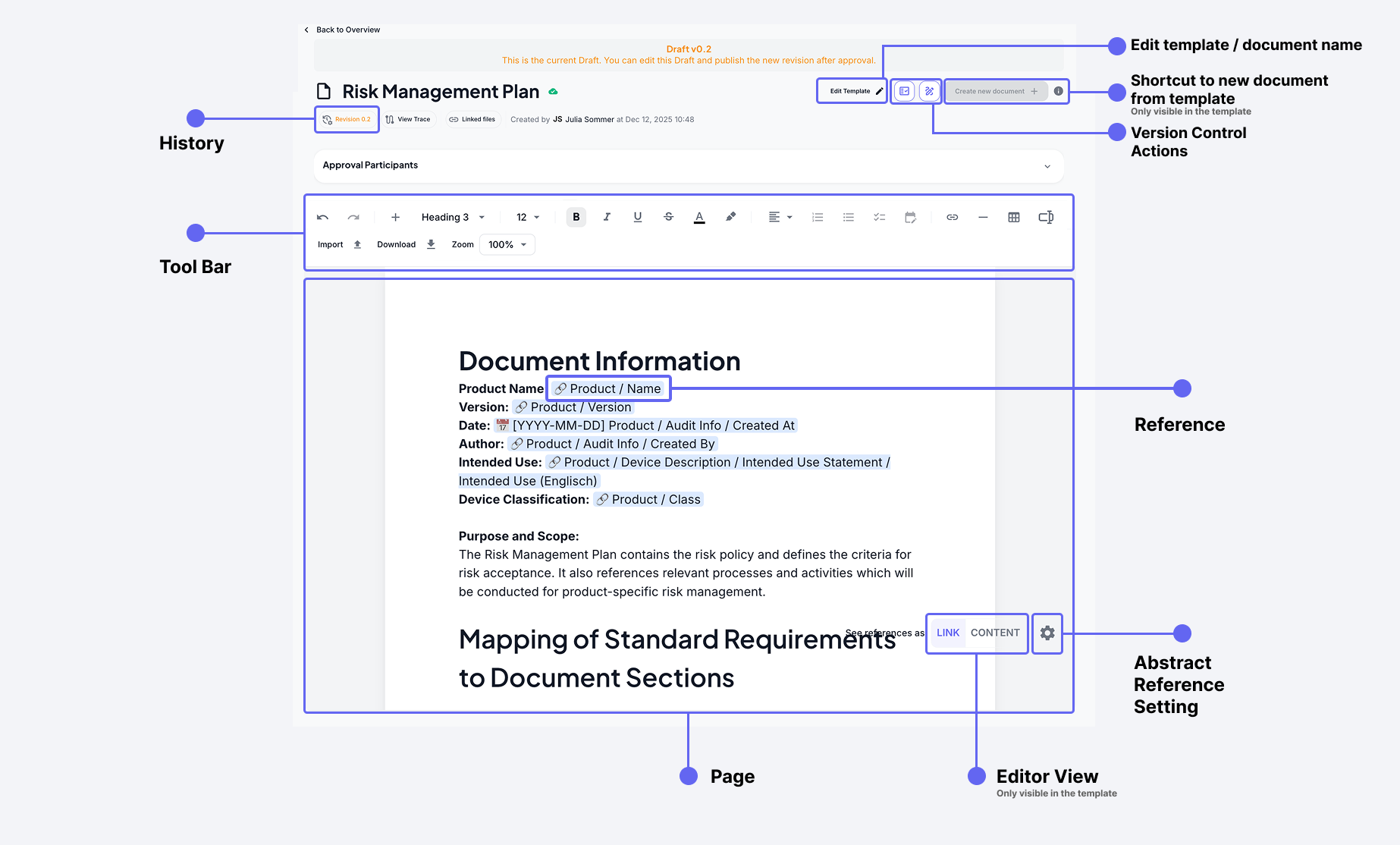
Have a look at how a Document/Template might look like:
Viewing Underlying References
- Hover over resolved content to see the underlying references. This helps understand how data is linked within the document.
- Click on the link of the Tooltip to jump directly to the references source
Document Version Control
For this you have the Version Control Action Buttons The Version Control system allows you to manage both Drafts (Revisions) and Approved Versions of your documents. For this you have the Version Control Action Buttons that allow you to Release Minor or Approve Draft whihc essentially corresponds to Revisions and Versions.
Understanding Revisions vs Versions
Like most objects in the CertHub, you can of course version Templates for a clean Audit Trail. Because it all works the same, have a look at the general Versoining Concept inside CertHub. We promise, it's pretty straight forward.
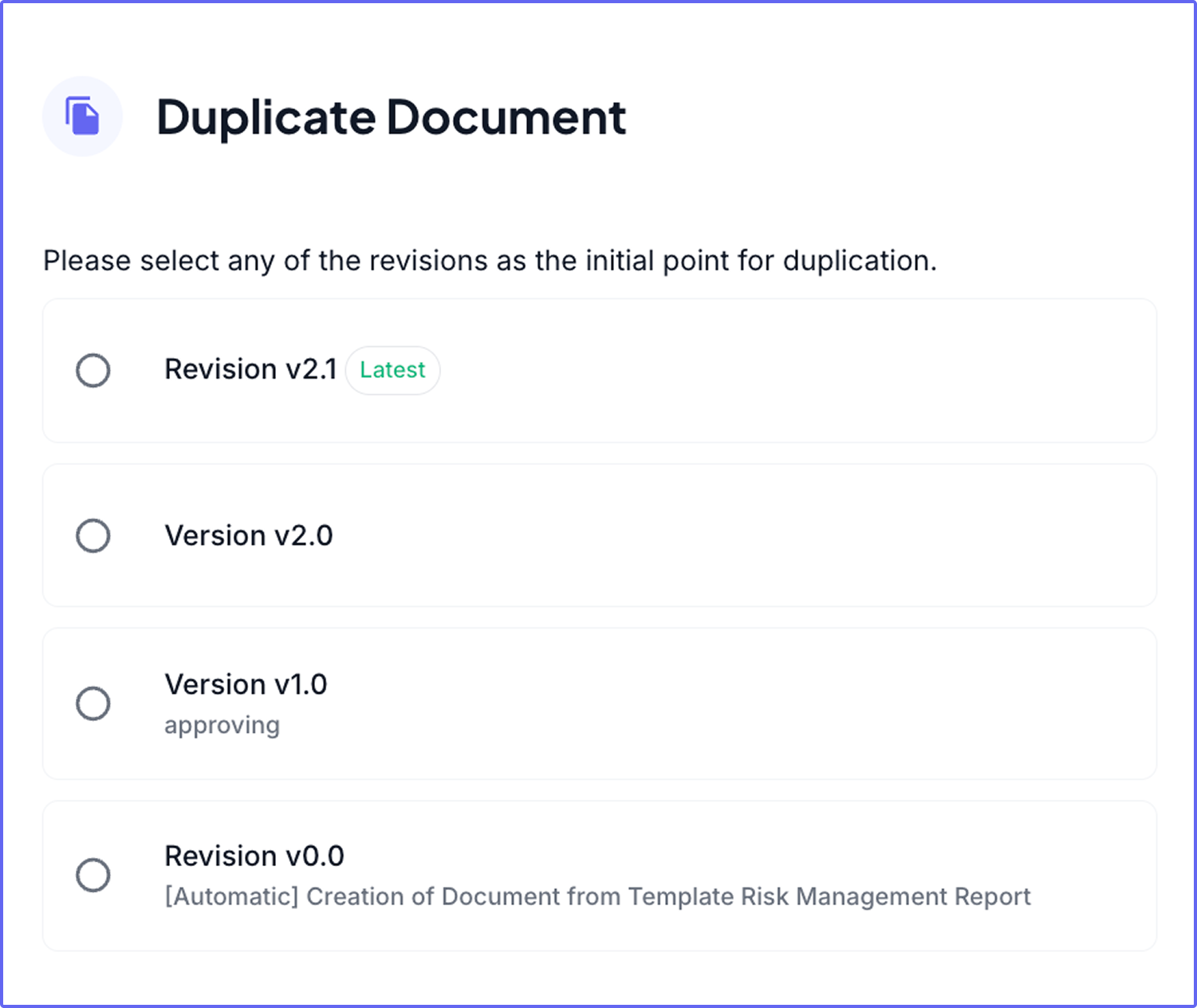
Create a Document from a specific Revision or Version
However, one thing is unique to Templates and Documents: The ability to create new documents or templates from any historical version.
When you click on the Duplicate Document option, you can select one of the available revisions or versions for that Document to create a new Document.
Dealing with References
When your Document has unresolved references, there's no need to worry. Just check where the reference is coming from and fill out the correct data there. We will take care of the rest.
If you want to get rid of the reference alltogether, just delete it, no problem.
Here is the thing, if you are looking at an approved Document that has missing data, it won't update automatically. Just create a new Draft. Again, we take care of the rest!
Editing Documents
For further details on how to use the text editor, please see how the TxtedEditor works.